
The Ed-Fi Rules dashboard widgets allow you to monitor validation errors across key PEIMS submissions at a glance. These interactive widgets give data managers immediate insight into rule severities, sub-category breakdowns, and direct drill-down access to specific error logs.
Note that users who don’t have Show SSN access can still view widget values but will not be able to drill down into Ed-Fi Rules screens.
Step 1: Locating and Selecting the Widget
To add an Ed-Fi Rules widget to your custom dashboard:
- Click Tools>Add Widget on your dashboard space.
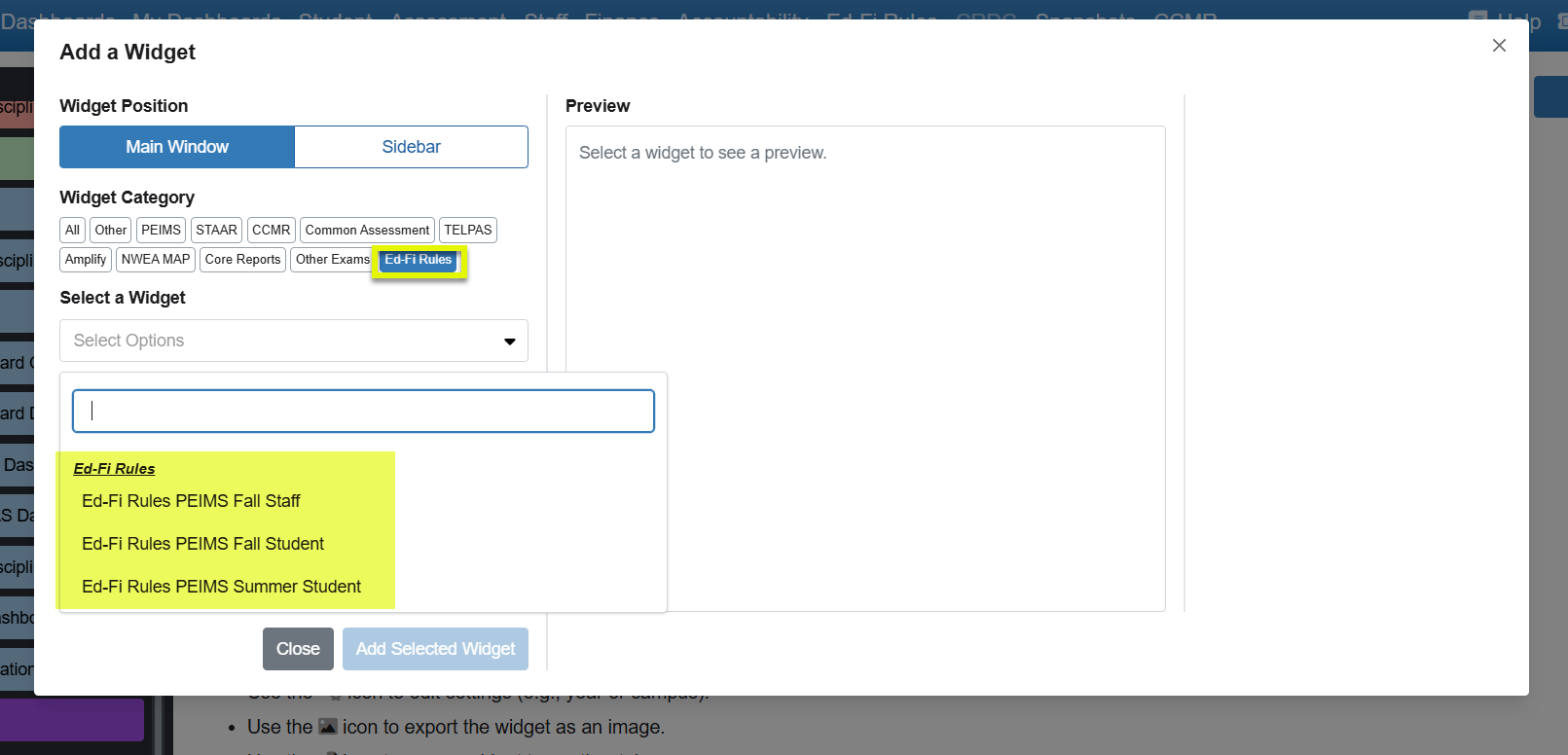
- In the Widget Category section, select the Ed-Fi Rules filter button.
- Click the Select Options dropdown menu under Select a Widget to choose from the three available reporting options:
- Ed-Fi Rules PEIMS Fall Staff
- Ed-Fi Rules PEIMS Fall Student
- Ed-Fi Rules PEIMS Summer Student
Please note if CSV files have been loaded for a submission, Ed-Fi Rules are no longer available since rules are processed with Ed-Fi promotion logic
Step 2: Configuring Widget Filters
All three Ed-Fi Rules widgets feature an identical set of configuration filters on the left panel, allowing you to customize the data scope and error shading thresholds before adding it to your view:
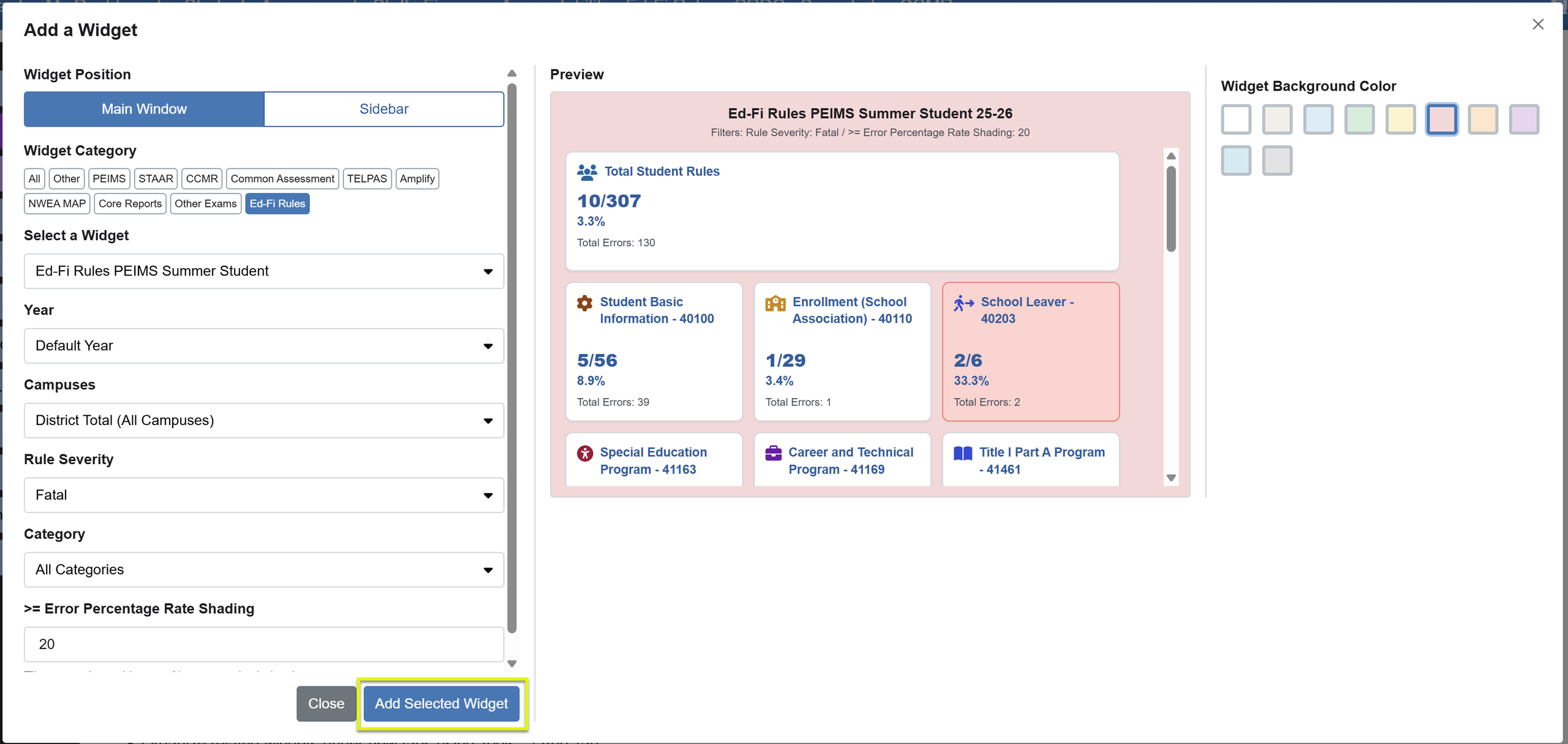
- Year: Select the relevant academic reporting year (defaults to the current default year).
- Campuses: Multi select filter to a specific campus(es) or monitor the entire district by selecting District Total (All Campuses) (default).
- Rule Severity: Filter your view by the specific level of data validation urgency. Setting this determines the widget’s overall alert accent color:
- 🔴 Fatal (Default): Highlights the widget background in Red.
- 🟠 Warning: Highlights the widget background in Orange.
- 🔵 Special: Highlights the widget background in Blue.
- Category: Choose All Categories (default) to see every available data record tile for that submission, or isolate single data group(s) (e.g., School Leaver or Special Education).
- >= Error Percentage Rate Shading: Defaults to 20. Any individual sub-category tile that meets or exceeds this specified error percentage rate will automatically shade red to immediately draw attention to critical data anomalies.
Step 3: Navigating the Added Widget & Drilling Down
Once you click Add Selected Widget, your live dashboard panel will render an interactive overview of your data health:
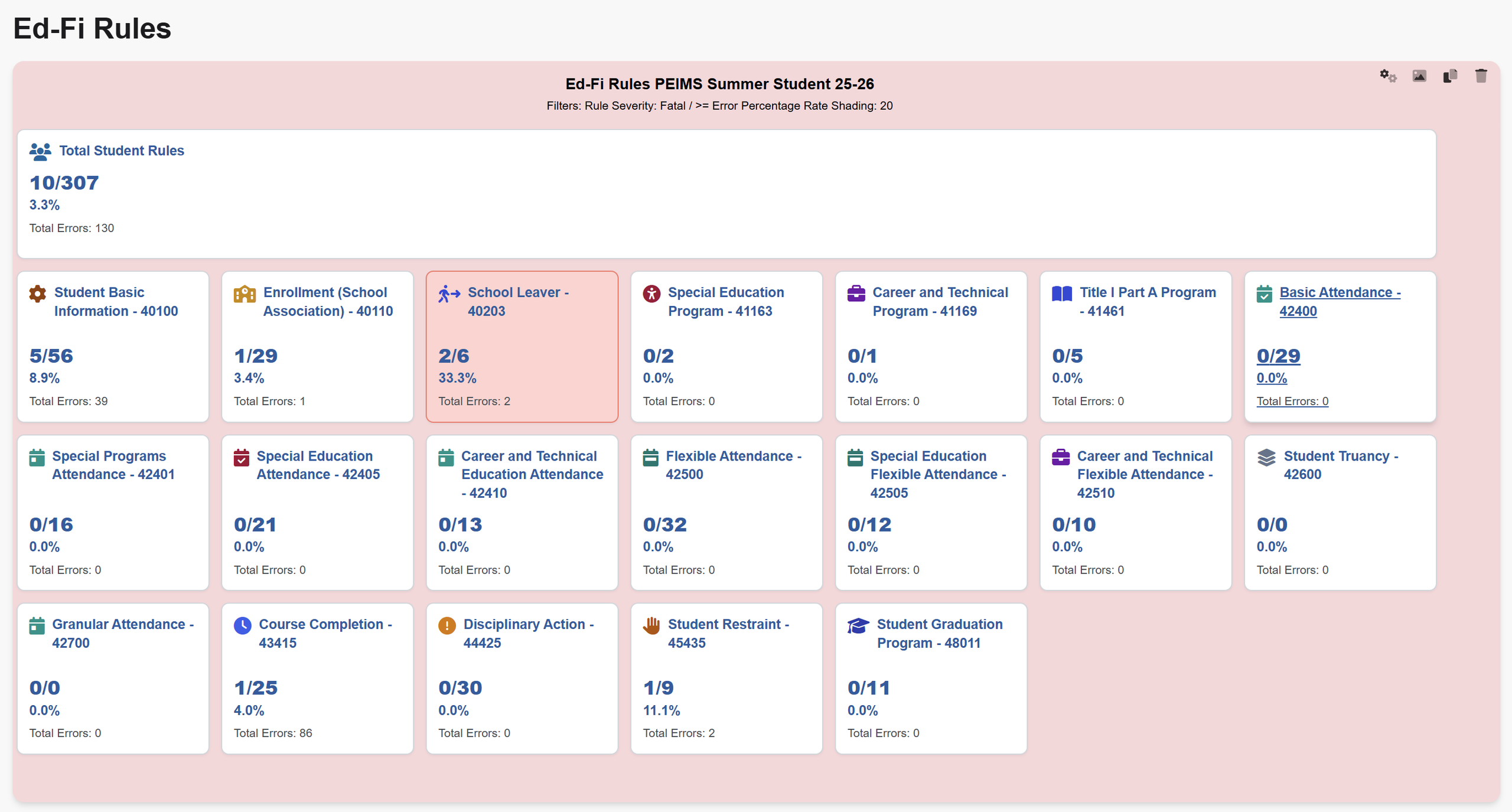
- The Summary Banner (Top Tile): Displays the Grand Totals across the entire submission for that section (Student or Staff depending on widget), showing the ratio of failed unique rules against total unique rules run, the overall error percentage rate, and the absolute total error count.
- Sub-Category Record Tiles: Each tile represents a specific sub-category or table within that PEIMS submission section (e.g., Student Basic Information – 40100, School Leaver – 40203, Special Education Program – 41163). Tiles display individual error ratios and percentages.
- Interactive Drill-Down: Every tile is completely interactive. Clicking on any sub-category block or the summary banner will immediately drill down to the Ed-Fi rules validation detail screen, taking you directly to the specific rules triggering those data errors for quick troubleshooting.