
Purpose
This feature is intended for district administrators who have administrator access in OnDataSuite.
User impersonation lets district administrators sign in as another user to troubleshoot access issues, verify permissions, or reproduce reported problems.
How to Impersonate
- Open Administrator
- Open the user’s Add/Edit User screen
- Click Impersonate
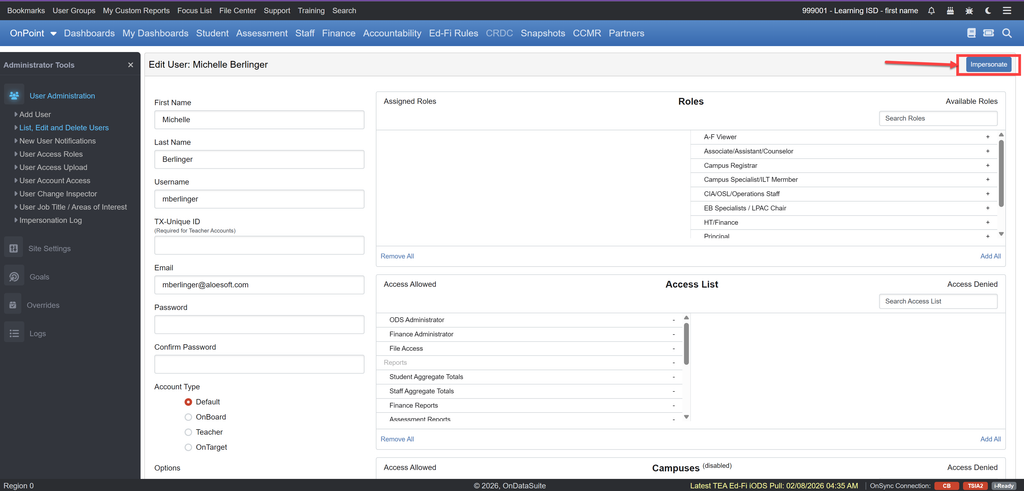
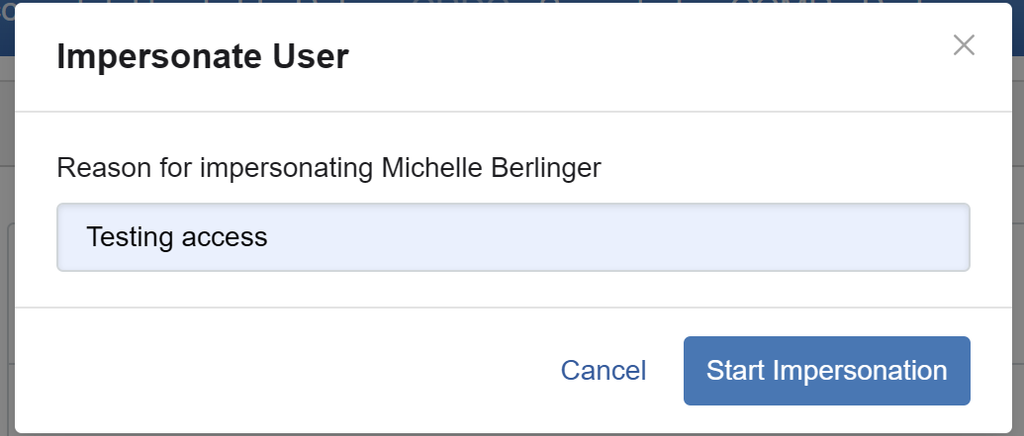
- Enter a reason for the session and Start Impersonation
You are then signed in as that user and taken to the home page. Only one impersonation session can be active at a time. Exit the current session before impersonating someone else.
While Impersonating
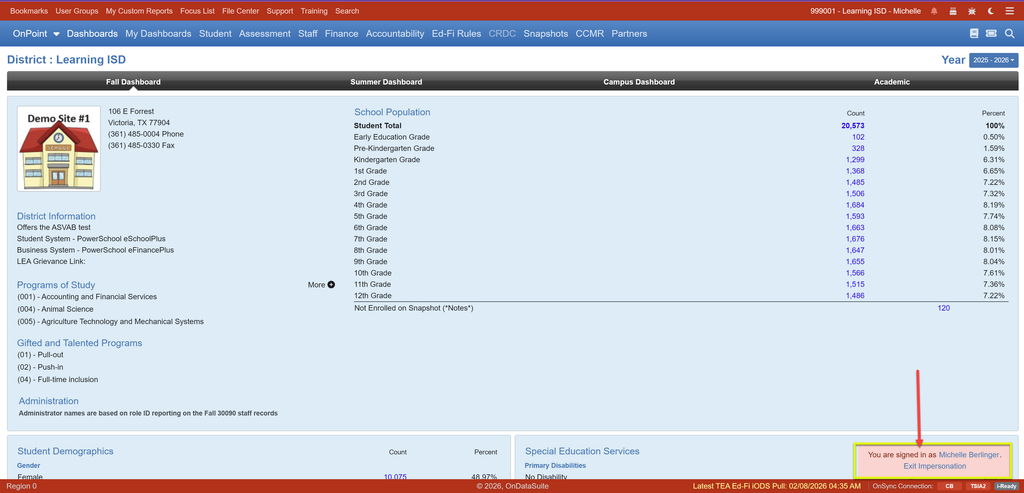
A red warning and red footer indicate that impersonation is active. You browse the site as the impersonated user and see their permissions, campuses, and reports—not your own. Be mindful that any changes you make while impersonating—such as to dashboards, bookmarks, or focus lists—will affect the impersonated user. Your color scheme preference still applies to your account.
Logging and Attribution
- Administrator → User Administration → User Change Inspector records user account changes made while impersonating under the user doing the impersonating, not the user who is being impersonated
- Administrator → Logs → Impersonation Log records each session (staff user, impersonated user, reason, start time, duration, and status).
- Administrator → Logs → User Access Logs records page visits while impersonating under the user doing the impersonating, not the user who is being impersonated
Auditing Sessions
Open Administrator → Logs → Impersonation Log to review sessions.
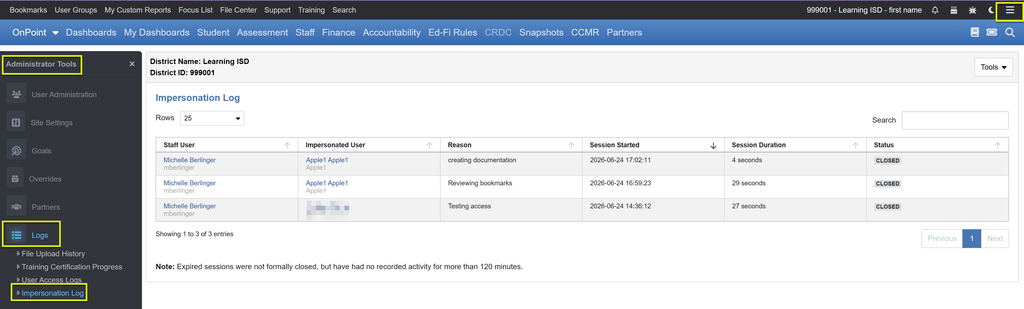
Session statuses:
- Active — the session is still open
- Closed — the session was ended with Exit Impersonation or sign-out
- Expired — the session was not formally closed and has had no recorded activity for two hours
Exiting Impersonation
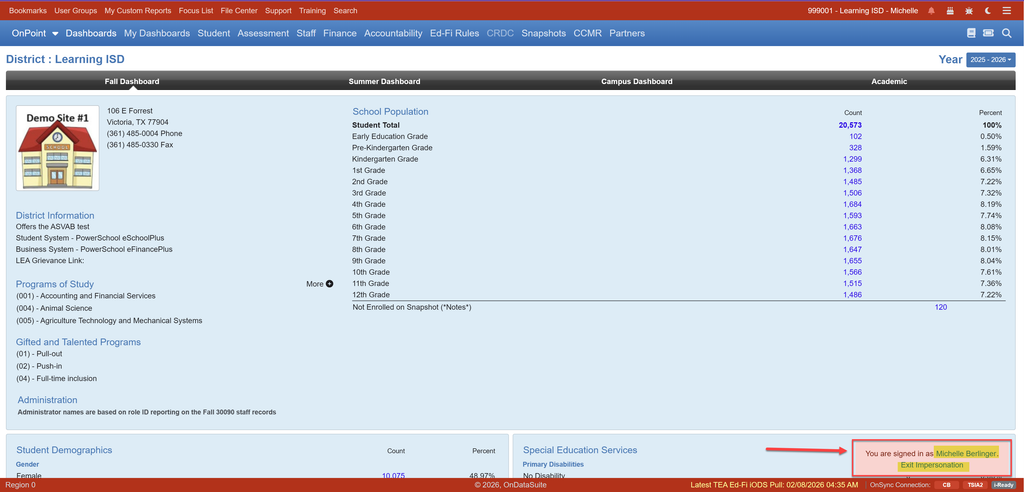
- Use the Exit Impersonation button in the red warning to return to your own account, or sign out to end the session entirely.
- You can click the impersonated user’s name in the warning to exit impersonation and open that user’s Add/Edit User screen.
- If you have multiple tabs open, ending impersonation in one tab does not update the others. Reload those pages to clear the impersonation status.