To prepare for the A-F Accountability reporting cycle, districts must ensure all required data is uploaded to the File Center. This report provides an executive overview of those uploads, functioning differently based on the current stage of the accountability cycle:
During the Calculation Window: The report displays the specific files currently being used to determine the year’s A-F results. Districts should use this view to confirm that all necessary data is present and accurate.
After the Window Closes: The report will continue to update with the most recently uploaded files. While these new files are visible for your review, they are for preview only; they will not be used for official calculations until the following year’s rollover begins.
Report location
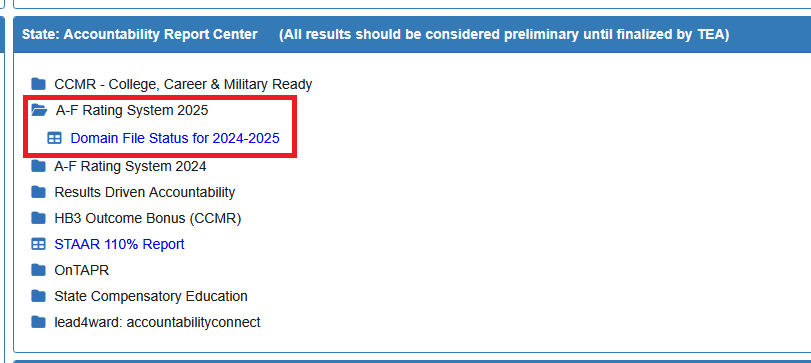
This report is located under the OnPoint Accountability tab, and listed under the State: Accountability Report Center section > CCMR – College, Career & Military Ready > A-F Rating System (Year Specific)
In this section click to expand the A-F Rating System folder and click on the ‘Domain File Status’ report to see the status of file uploads for the required year.
This report lists ALL the files required for the calculation of A-F for the given year and will scan your file center to provide an at-a-glance view of either the most recent file loaded and will show a green OR will display a red to indicate that a file is still missing.
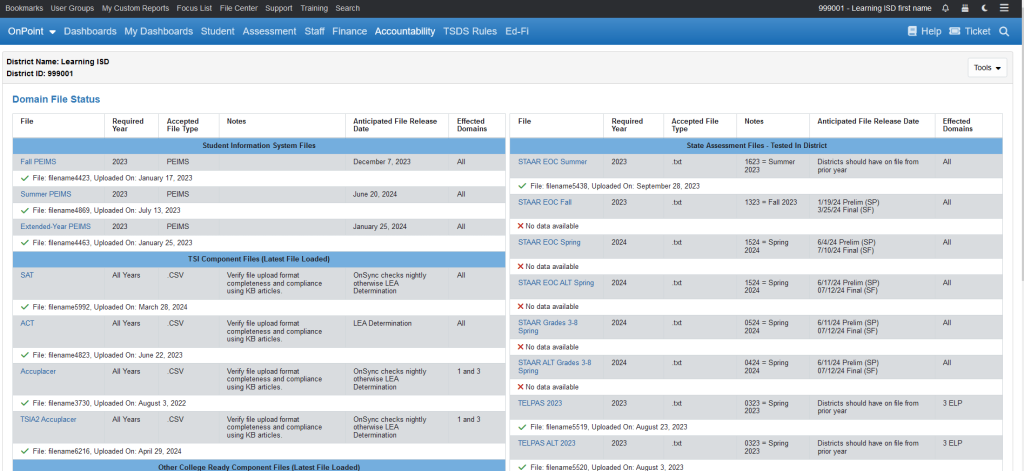
It is important to note that if a file has been loaded with errors, the green check mark represent the status of the upload as being present, it does not check for the validity of the data contained within the uploaded file.
It is assumed that districts have checked their files prior to uploading for validity of the data and have made sure the data file format is in the required format. For details on checking the requirements for each file users should review the associated KB article that supports each file type as explained in the link below
https://kb.ondatasuite.com/knowledge-base/file-center-tips-before-you-upload/
Questions about specific file types
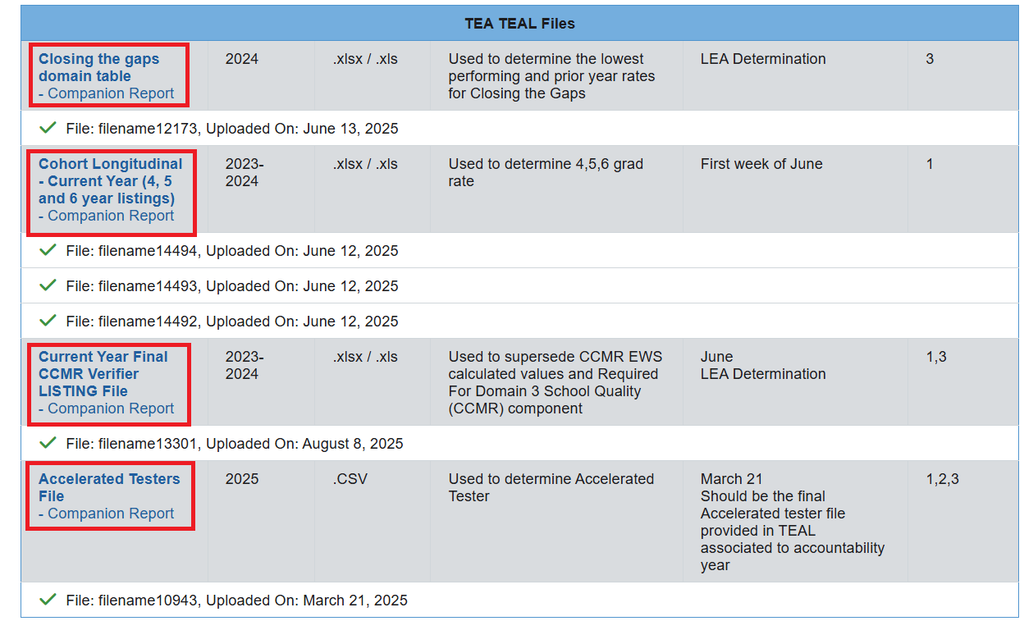
For specific details about any file listed, users may click on the bold blue hyperlinked ‘File’ title to be taken to the supporting OnDataSuite KB article that will have the most up to date information about the file.
To review the uploaded file contents users may have the option to use the supporting “-Companion Report” link directly under the bold blue link to review their file upload
These links can sometimes be updated daily/hourly depending on issues discovered during the A-F upload and testing phase.