Location: Administrator>File Center
These instructions are for ESC users loading PEIMS or Core Collection files for multiple districts. District files may be XML or CSV and should be packaged as ZIP files before upload. For bulk ESC loading, prepare one ZIP file per district, then place the district ZIPs into one or more regional ZIP files for upload. Keeping files organized by submission makes it easier to manage large batches and confirm that every district was included.
It is possible to use the TEA IODS Connection for some districts in your region and load TSDS files for another. However, once you load files for a district for an ongoing submission, it will no longer pull data from the TEA IODS. https://kb.ondatasuite.com/knowledge-base/tea-ed-fi-iods-connection-for-escs/
Prepare District Files
Step 1: Create a submission folder
Create a working folder for the submission you are preparing to upload. Use a name that identifies the ESC, submission, and school year, such as ESCxx_Summer_25_26. Only upload one submission or collection at a time.
Step 2: Create one ZIP file per district
- Place all files for a single district into one ZIP file. The files may be XML or CSV.
- Name the ZIP so the district is easy to identify (for example, 011901.zip).
- Save each completed district ZIP in the submission folder.
| Important: The XML interchanges or CSV files must be directly inside the district ZIP. Files extracted through the TEA Download process will automatically come out in a ZIP file. |
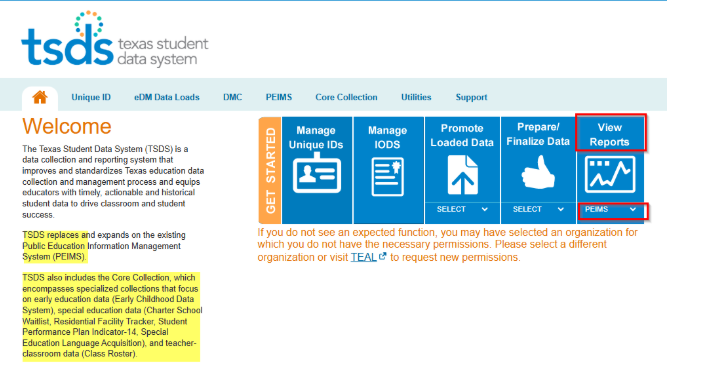
- In TSDS, access the View Reports menu option for PEIMS (if looking for Fall, MidYear, Summer, Ext Year and Attendance) Or switch to a Core Collection before proceeding.
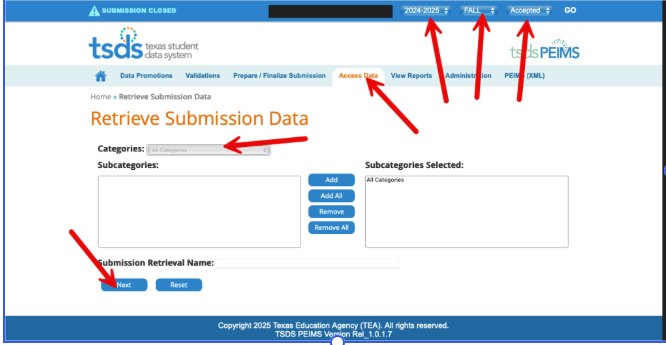
2. Navigate to the respective options noted at the top of the screen by the red arrows to generate the CSVs. Ex: 2024-2025 Fall PEIMS
3. Select All Categories and click NEXT. It is recommended you name the file something similar to contents. Ex: DISTRICTID_FALL_2425. You will be prompted to select SUBMIT.
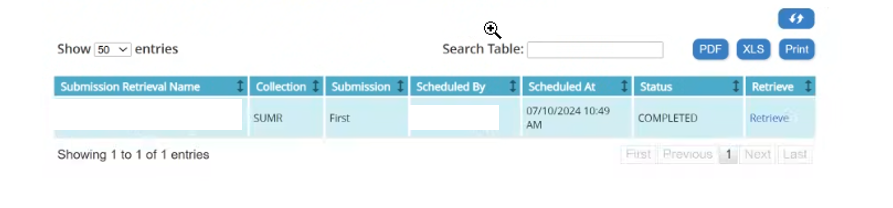
4. Once the file has completed, click the RETRIEVE link to download a zip file containing all the CSVs for that submission. This can be saved to any location of your choosing.
Step 3: Create the regional ZIP file(s)
After each district has its own ZIP file, combine the district ZIPs into a regional ZIP for bulk upload. A regional file can be named, for example, REGIONID.zip.
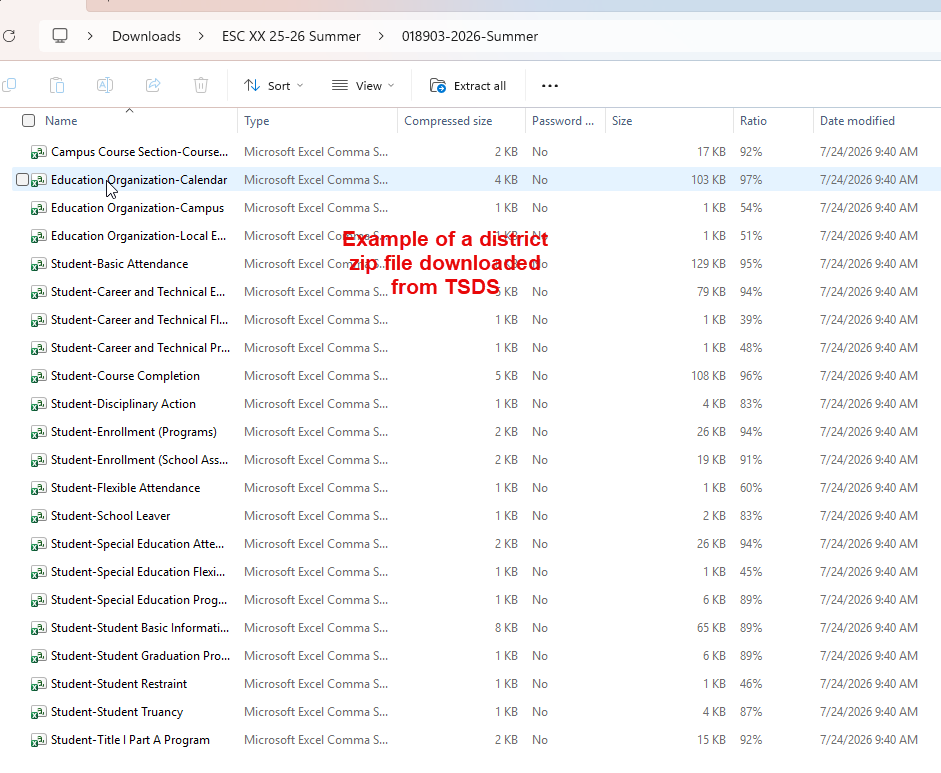
- Check the zip file first to make sure they contain only CSV files extracted from TSDS. See below example of district zip file downloaded from TSDS.
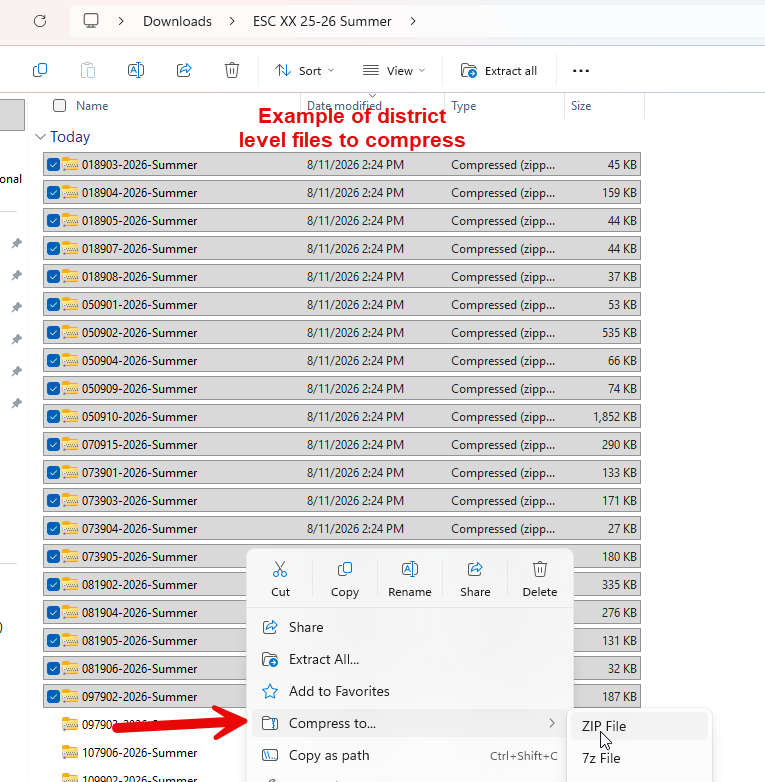
2. Select all the district level zip files downloaded directly from TSDS. Right click and select Compress to Zip. See below example of selection of district level zip files to compress to one zip file.
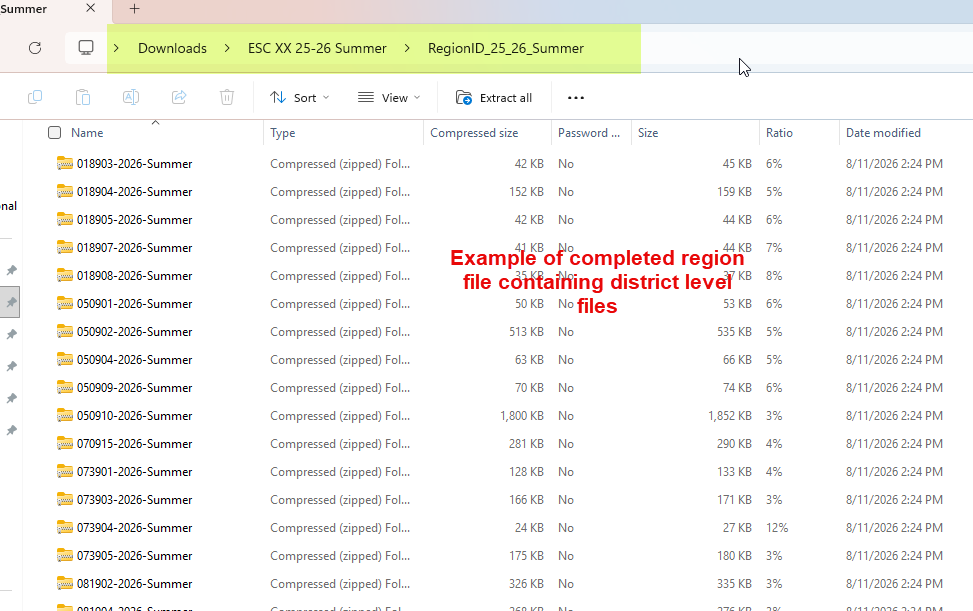
3. Rename the file to Region ID_25_26_Summer. Within that file, all the compressed zip files will be moved. This is the file that will be uploaded to ODS. Example of completed region file containing all the district level zip files.
Step 4: Load Region ZIP file to OnDataSuite
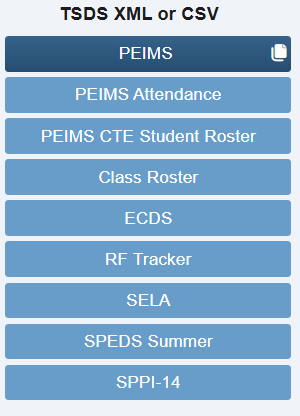
- Go to the File Center and select either PEIMS or the appropriate collection button located on the left hand side.
2. Select the Green Upload button. Choose the created region zip file from the file explorer browse (Ex: RegionID_25_26_Summer)

3. Select the appropriate options below. The options may vary depending on the submission.
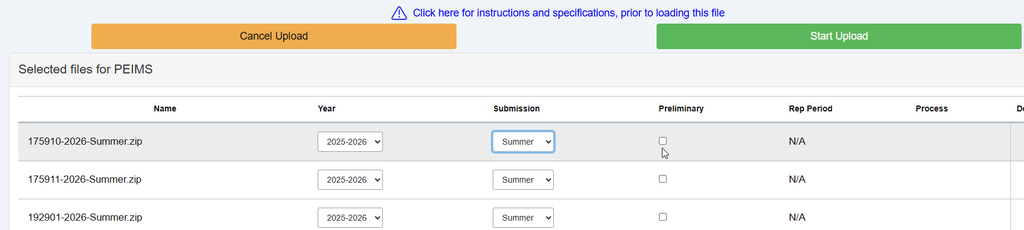
4. When completed, review the loaded files to make sure they are completed.
- Click a loaded file to view its individual interchanges and confirm the expected files loaded.
- Look for a green “ok” indicator for each expected interchange.
- Investigate missing interchanges. Missing data can affect reports that rely on data elements from those areas.
- If needed, use the status controls at the bottom right to change a file from Final to Preliminary or from Preliminary to Final.
5. As a secondary verifier, check data within ODS to make sure data is populated.
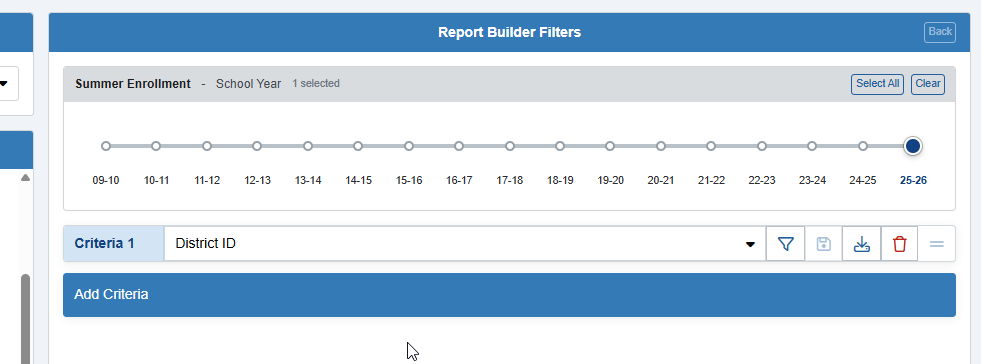
A few ways to do this is review the district dashboards or perform an ad-hoc draw based on District ID to view the number of records for that submission for each district. A district that failed to load will reflect 0.