Location: Administrator>Site Settings
Education Service Centers (ESC’s) using the ESC version of OnDataSuite may use the Ed-Fi API system to populate their ESC databases.
It is possible to use the TEA IODS Connection for some districts in your region and load TSDS files for another. However, once you load files for a district for an ongoing submission, it will no longer pull data from the TEA IODS. https://kb.ondatasuite.com/knowledge-base/loading-tsds-csvs-esc-level-only/
Before You Begin
A key and secret for each district is needed. (Claim Set Name should be set to “Read-Only All Resources“).
- If the district is an existing OnDataSuite user you may use the same key and secret created by the district for their existing OnDataSuite database. You will need to get with that district to obtain the that Key & Secret.
Retrieving Key & Secret from TSDS
- In TSDS, navigate to the Data Management Center>Manage Applications, Keys and Secrets
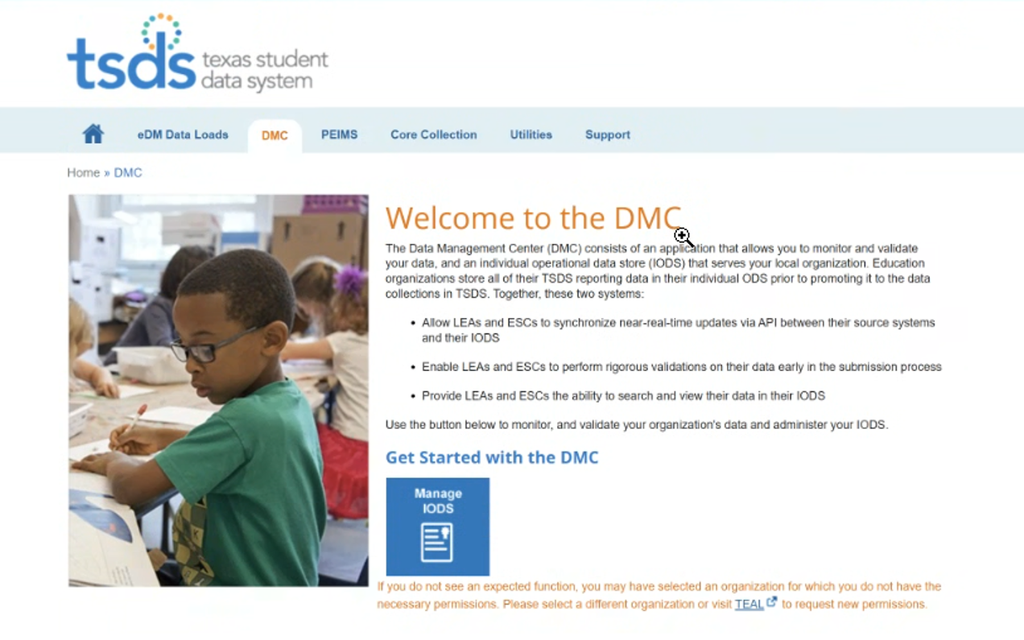
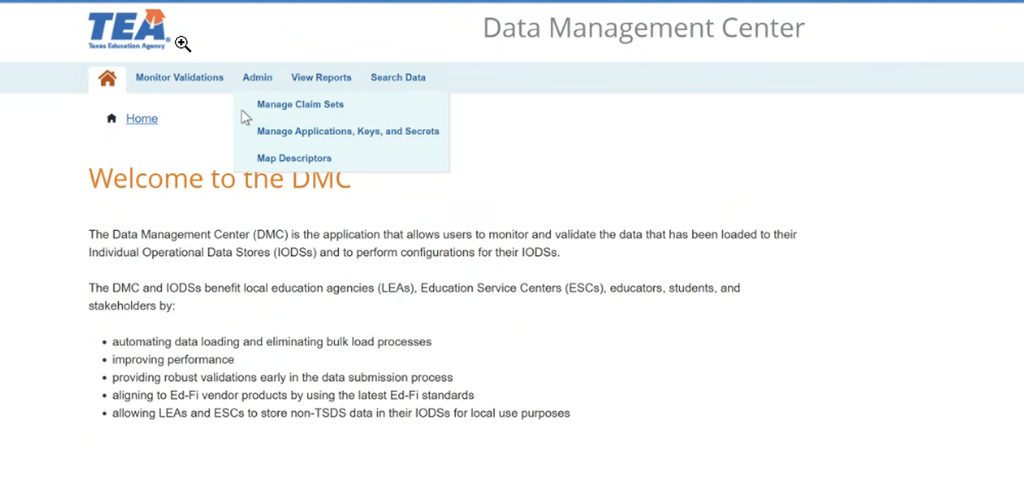
2. Select each district from the drop-down box at the top. You will need to retrieve a Key & Secret for each individual district you would like to connect using Ed-Fi IODS.
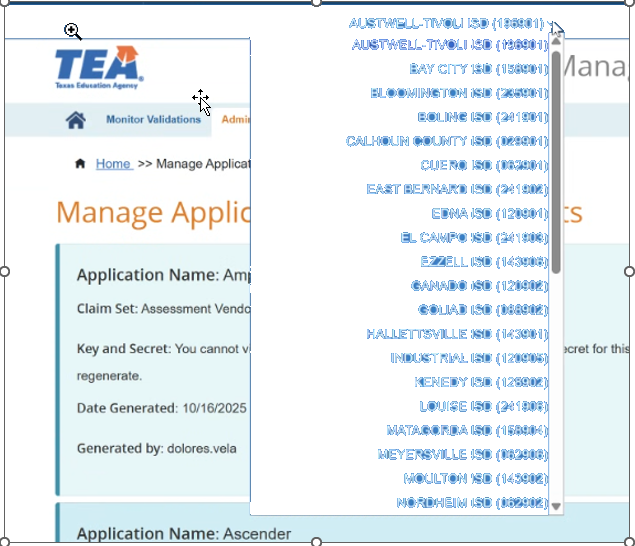
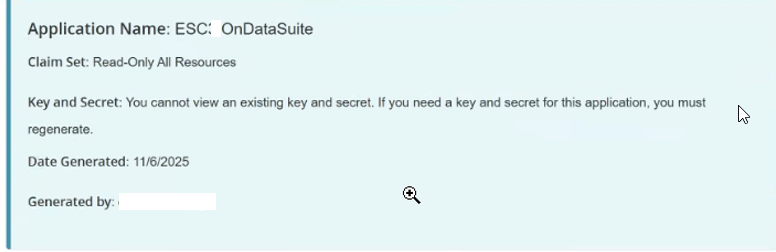
To differentiate from the district level Key & Secret, it is recommended to identify that this application is for a ESC OnDataSuite. See example below.
Adding Key & Secret to OnDataSuite
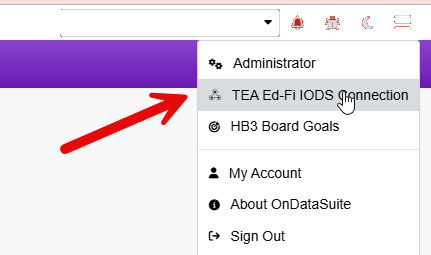
- In ODS, navigate to the Site Settings> TEA Ed-Fi IODS Connection located in the Hamburger Menu on the right corner.
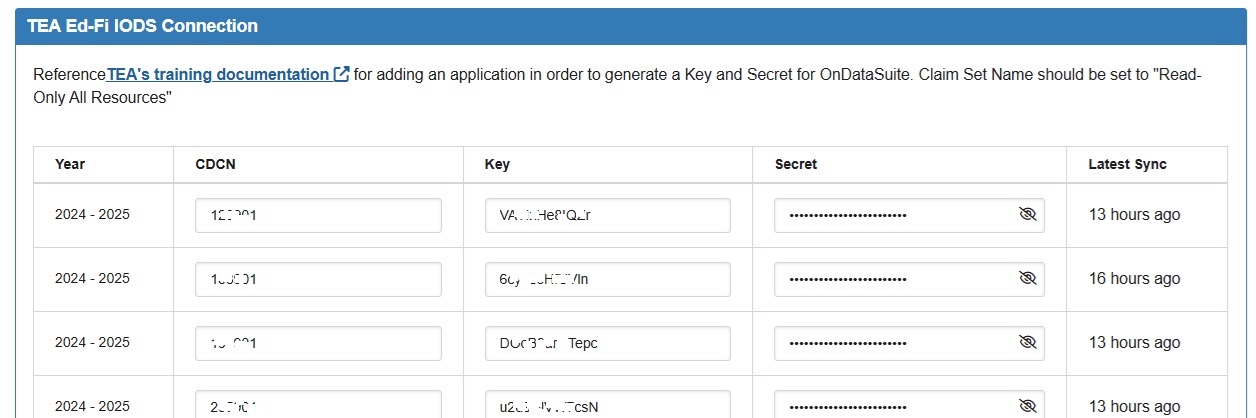
2. Under the appropriate year, add the CDCN and the corresponding Key & Secret generated from TSDS. A yellow box will appear if the connection is successful.
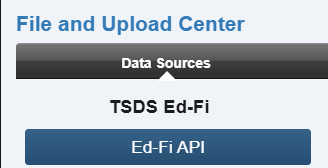
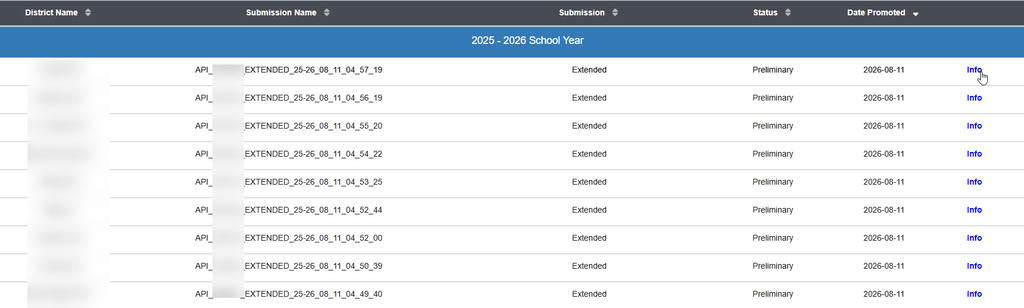
3. Once the connection is established and promoted, go to File Center. Select the Ed-Fi button and review the connection is established for the districts expected. Below is an example of the Extended Year Promotion for each district with TEA IODS Connection established.
4. As a secondary verifier, check data within ODS.
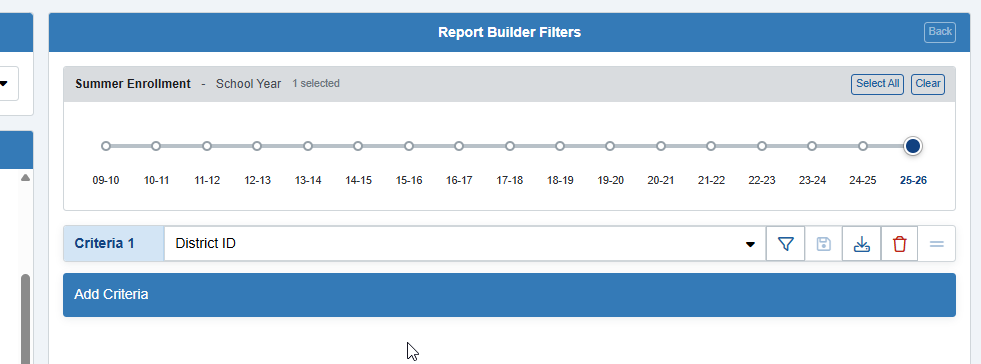
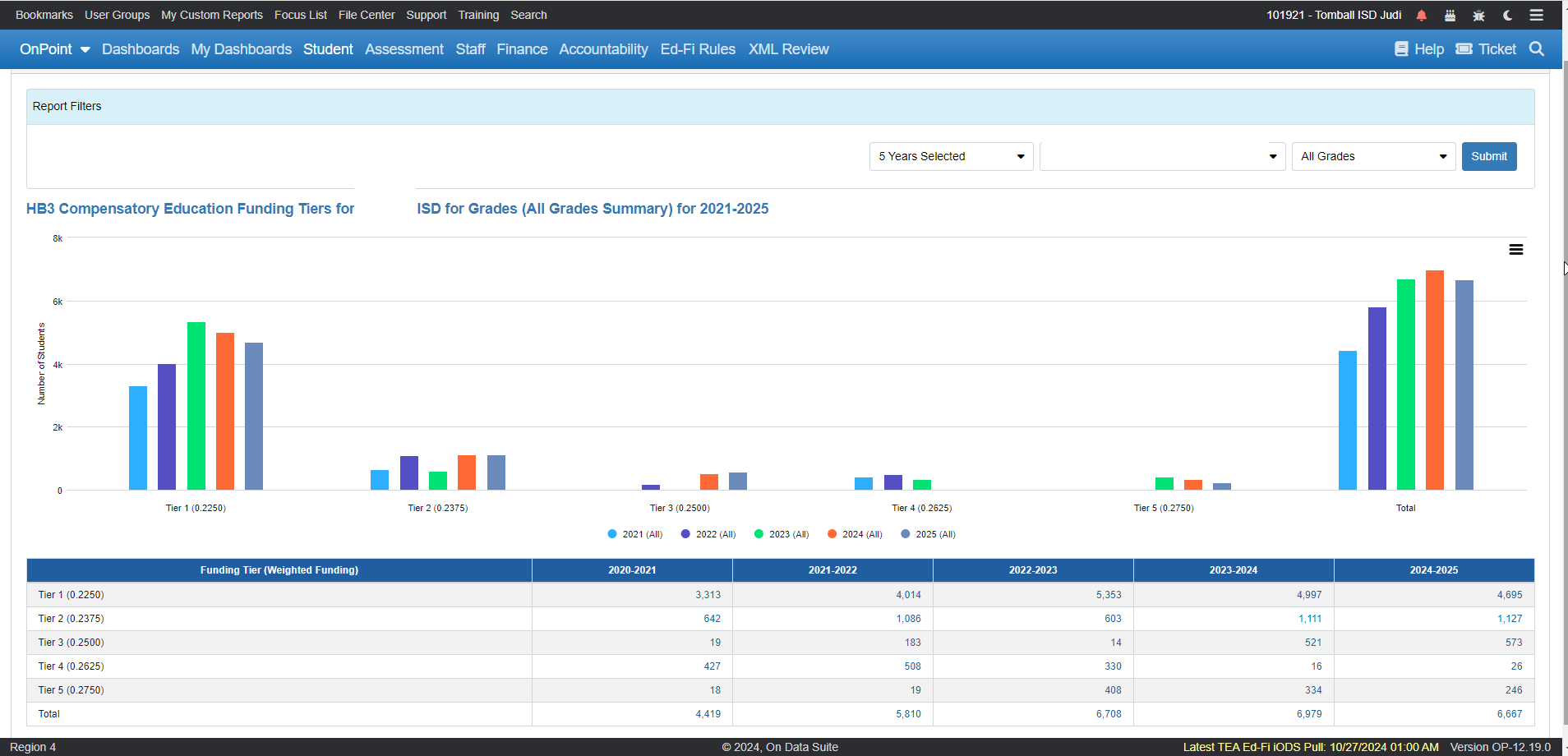
A few ways to do this is review the district dashboards or perform an ad-hoc draw based on District ID to view the number of records for that submission for each district. A district that failed to load will reflect 0.