1. Home
  2. Loading National Clearinghouse Enrollment File

Loading National Clearinghouse Enrollment File

File Type: CSV

National Clearinghouse Data Website

Step 1: Obtain the NSC Enrollment File

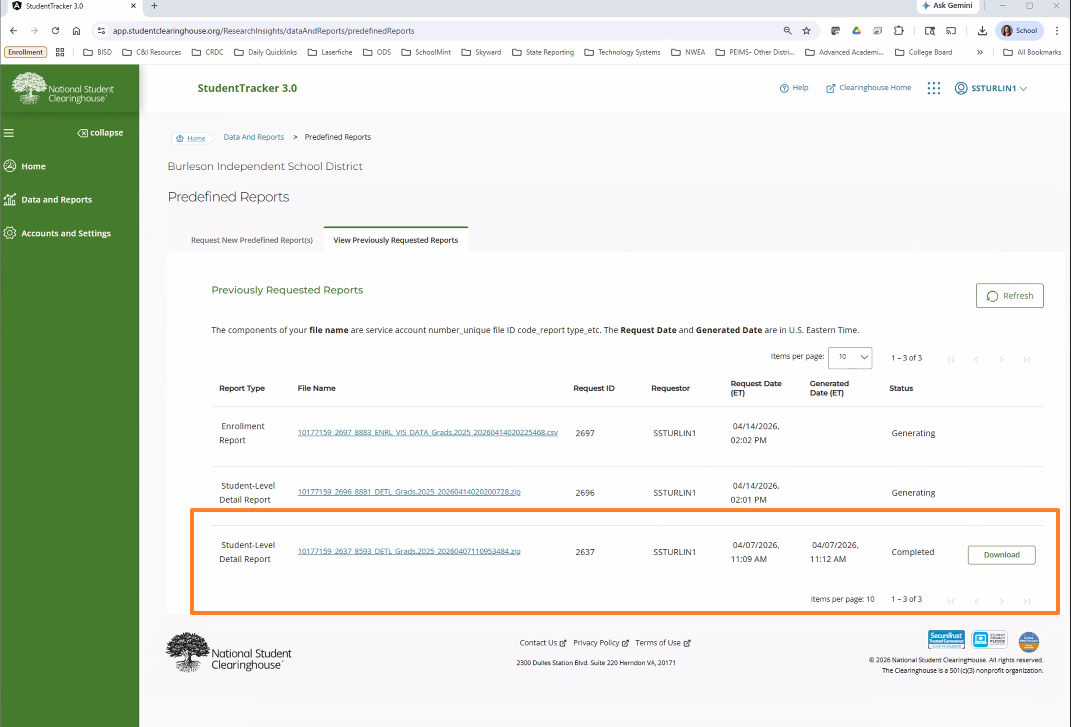
  1. Log in to the NSC secure portal
  2. Request or download the Enrollment Detail Report
  3. Save the file locally (do not open and re-save unless formatting is required)

Best Practice: Keep the original file untouched and make a copy if edits are needed.
Step 2: Review File Formatting

Before uploading, open the file in Excel or a text editor and confirm:

  • The header row is present
  • No extra blank rows at the top
  • Student identifiers are consistent with ODS records
  • Date fields are not corrupted or auto-formatted
AYour_Unique_Identifier
BFirst_Name
CMiddle_Name
DLast_Name
EName_Suffix
FRequester_Return_Field
GRecord_Found_Y/N
HHigh_School_Code
IHigh_School_Grad_Date
JCollege_Code/Branch
KCollege_Name
LCollege_State
M2-Year/4-Year
NPublic/Private
OEnrollment_Begin
PEnrollment_End
QEnrollment_Status
RGraduated
SGraduation_Date
TDegree_Title
UMajor
VCollege_Sequence
WProgram_Code

Step 3: Load the File into OnDataSuite

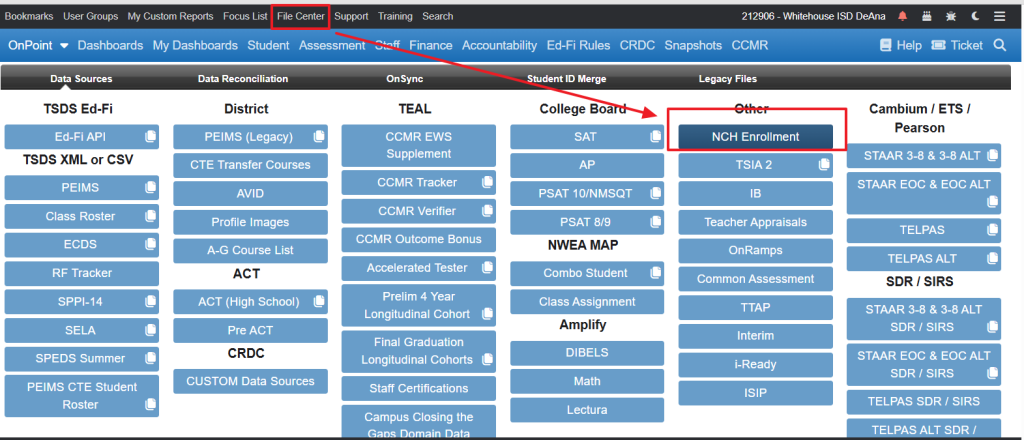
  1. Navigate to File Center
  2. Select National Student Clearinghouse – Enrollment
  3. Click Upload File
  4. Choose your NSC Enrollment file
Updated on 01/21/2026

Was this article helpful?

Need Support?
Can't find the answer you're looking for?
Contact Support