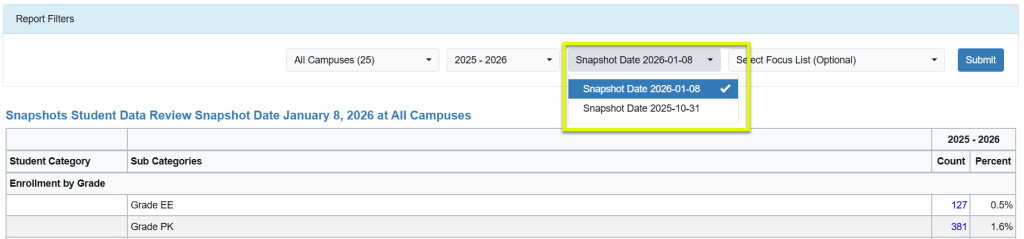
The Snapshots feature allows you to “freeze” your student or staff data exactly as it existed on a given date. Snapshots data can be used for any type of historical comparison where a begin date and end date is reported to the TEA Ed-Fi IODS.
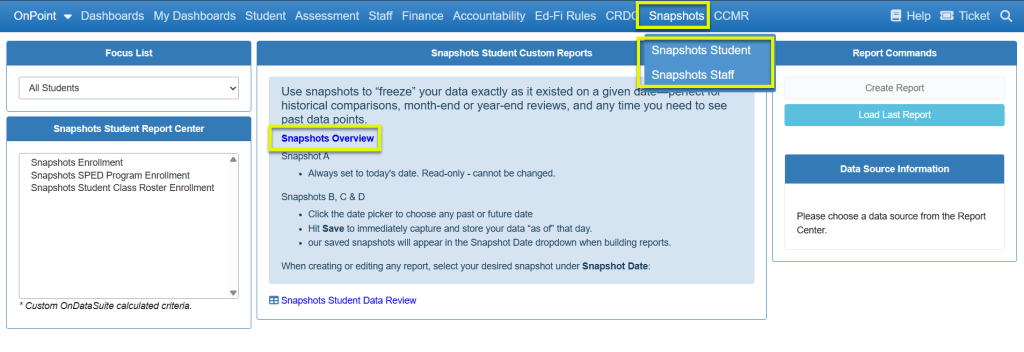
Snapshots data will automatically promote daily with the option of adding 3 additional dates at the LEA level.
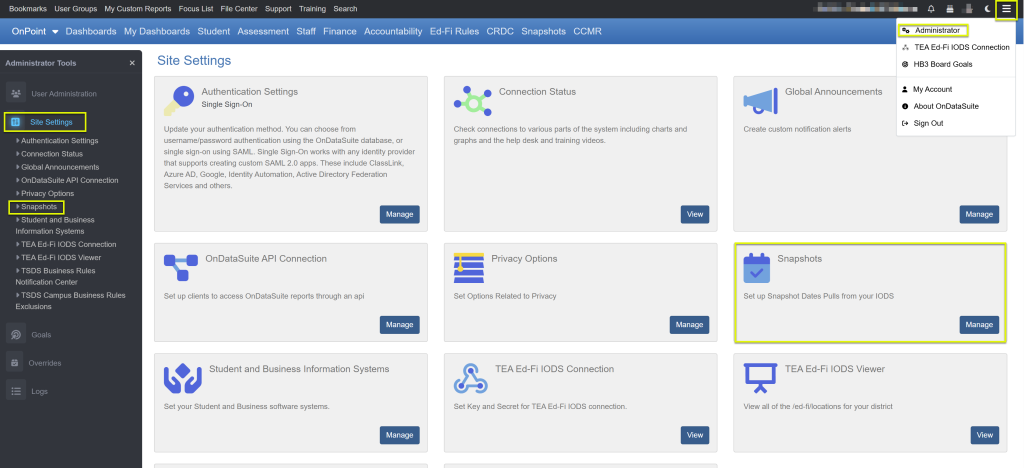
Administrator>Site Settings>Snapshots
The administrator Snapshots screen allows ODS administrators to set additional LEA snapshot dates apart from the daily one. Note: You must be an OnDataSuite administrator to set snapshot dates.
- Three additional dates, Snapshot B-C-D may be set for promotion on a nightly schedule.
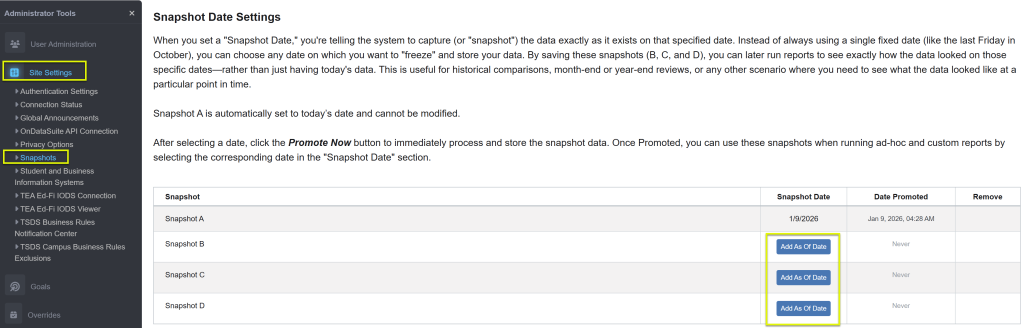
- To set a date, click on the Add As Of Date button which will automatically default to today’s date. Click on the date and use the calendar to choose a different date if desired. After the date is correct, click Promote Now to immediately promote that particular Snapshot which can be viewed in the File Center.
- Note: If you do not click the Promote Now button after selecting a date, the date will be used in the nightly promotion.
- Note: If you inadvertently clicked on the Add As of Date button and did not want to set up that particular snapshot, click the trash can to remove the date.
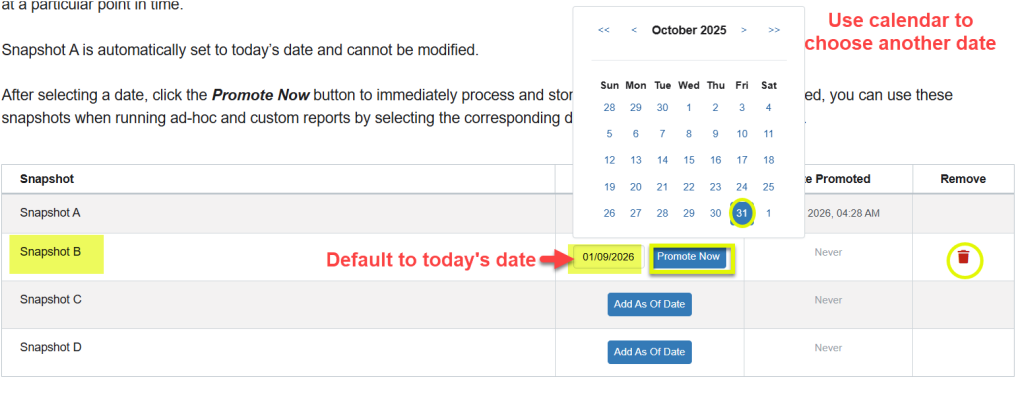
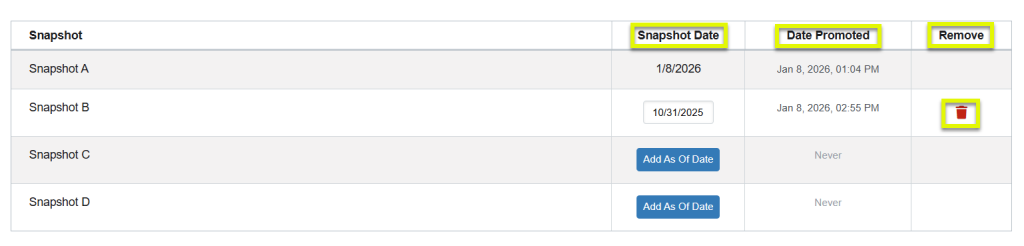
- The Snapshot Date indicates the date used in the logic to pull that particular day’s information; the Date Promoted indicates the date the data is processed. To delete a snapshot promotion from the File Center, click the trash can icon under the Remove column.
File Center
- Snapshots promotions can be found in the File Center>Data Sources>TSDS Ed-Fi>Ed-Fi API tab with the naming convention starting with API_ASOF

Snapshots>Student or Staff

- Snapshot Dates are applicable under the Snapshots tab in the blue menu bar for Student or Staff – Report Center (ad-hoc), snapshots custom reports, and some standard custom reports
- Snapshot Dates do NOT apply to any other menus in OnDataSuite (i.e. Dashboards, Student, Assessment, Staff, etc.)unless specifically stated
- When creating a Snapshots ad-hoc report, use the Today default date or choose other snapshot dates in the dropdown box if they have been set on the Administrator>Site Settings>Snapshots screen.
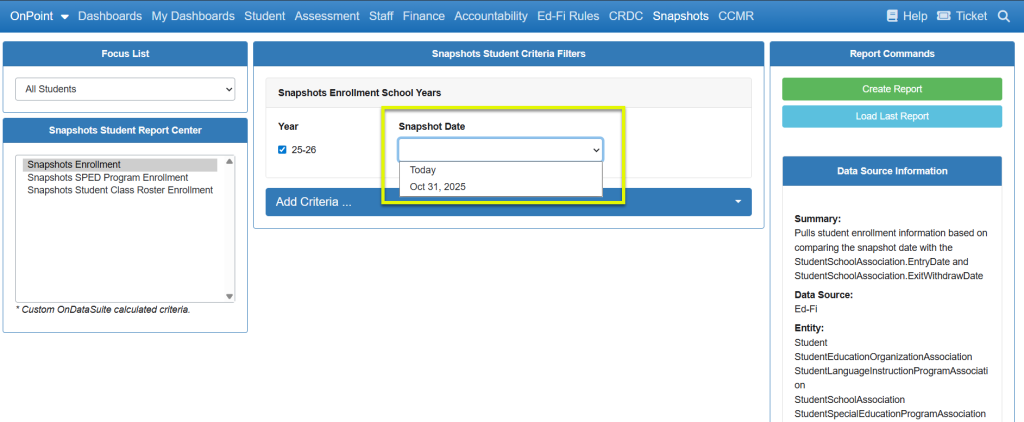
- When running custom reports, use the date dropdown filter to change to different snapshot dates if they have been set on the Administrator>Site Settings>Snapshots screen.