
📍 Report Location
File Center → Upload File → Common Assessment
Upload Type: Common Assessment (common_assessment)
Summary
The Common Assessment upload type supports importing assessment data from Eduphoria and Lead4ward/OnTarget exports into OnDataSuite.
The system automatically detects the file format, allowing districts to upload either:
- 📄 Lead4ward / OnTarget CSV
- 📊 Eduphoria ExportView Excel (.xlsx or .xls)
If an Eduphoria Excel file does not match one of the supported layouts, the upload will fail
📁 Getting the file out of Eduphoria
Step 1: Log in to Eduphoria
Step 2: Select the test you want to export
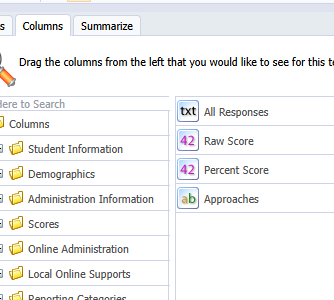
Step 3: Add fields
All Responses
Raw Score
Percent Score
Approaches
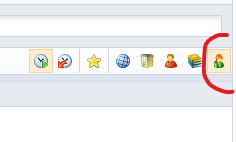
Make sure you are in student view
✅ Lead4ward / OnTarget xlxs
The upload accepts the standard Lead4ward xlxs format containing the complete Lead4ward header structure, including fields such as:
- Test_TestCode
- Student identifiers
- Response data
- Assessment
Eduphoria Workbook Requirements (2025–2026)
For the upload to be recognized correctly, the workbook should follow the expected Eduphoria ExportView layout.
Title Row (Row 1)
The title must end with the school year suffix.
Example:
_25.26This maps the upload to the 2026 accountability year.
Recommended
Include the grade level and subject in the title.
Example:
Grade5_Math_25.26
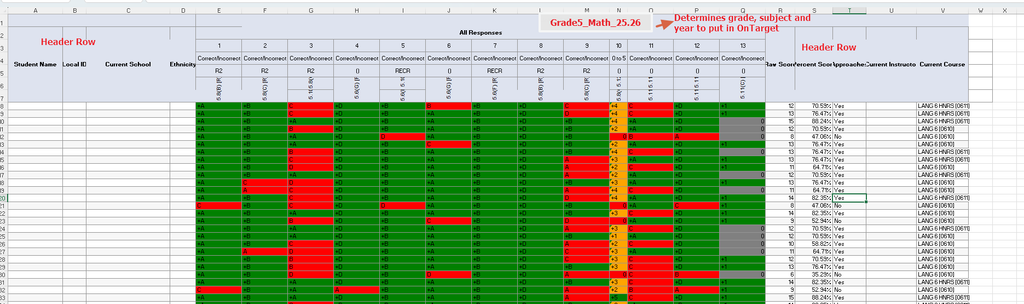
Header Row (Row 2)
The following columns are required:
- Student Name
- Local ID
- Current School
- All Responses
- Raw Score
- Percent Score
- Current Instructor
- Current Course
🔄 Automatic Processing
When an Eduphoria workbook is uploaded, OnDataSuite automatically populates several values.
| Field | Automatically Assigned |
|---|---|
| Campus | {District}001 |
| Teacher | EDUPHORIA (synthetic teacher record) |
| Test Date | 08/01/{Previous School Year} |
| Subject | Determined from keywords in the assessment title |
Subject Detection Examples
| Title Contains | Subject |
|---|---|
| Number | Math |
| Algebraic | Math |
| Geometry | Math |
| Reading | Reading |
| Science | Science |
| Social Studies | Social Studies |
Icon: ⚙️ (Automatic Processing)
👥 Student Matching
Students are matched using the Local ID field.
The upload process searches using:
rec_findmeidHistory
This allows students to be identified even if identifiers have changed within the system.
Icon: 👥 (Student Matching)
🚫 Currently Not Imported
The following information is ignored during the upload and is not currently processed.
- Separate Answer Key files
- TEKS rows
- Reporting Category rows
For multiple-choice assessments, answer keys are inferred automatically from the response patterns.
Icon: ⏳ (Future Enhancement)
❌ Upload Failure Conditions
The upload will fail when:
- The Excel workbook does not match a recognized Eduphoria ExportView layout.
- Required workbook rows or headers are missing.
- The workbook contains fewer than four scored assessment items.
If this occurs, export the assessment as a Lead4ward CSV and upload that version instead.
Icon: ⚠️ (Warning)
📚 Data Sources
- Eduphoria ExportView Assessment Export
- Lead4ward Common Assessment CSV
- OnTarget Common Assessment CSV
Icon: 🗄️ (Data Source)
📖 Definitions
| Term | Definition |
|---|---|
| Common Assessment | A locally administered assessment used to measure student mastery of standards. |
| ExportView | Eduphoria export format containing student assessment responses and scores. |
| Local ID | District student identifier used for matching records. |
| Synthetic Teacher | A system-generated teacher record used when an individual teacher is not supplied by the assessment file. |
💡 Special Notes
When possible, use the latest ExportView format provided by Eduphoria.
The system automatically detects whether the upload is a Lead4ward CSV or Eduphoria Excel workbook.
No manual format selection is required.
Including the grade level in the workbook title improves automatic subject and grade detection.
Excel uploads must closely follow the supported Eduphoria ExportView layout.